Step 1 - Determine the SQL Server Collation
Step 2 - Stop the SQL Server Services
Step 3 - Open a Command Prompt and Navigate to the Binn Directory and type following command on command prompt:
sqlservr -m -T4022 -T3659 -s"SQLEXP2014" -q"SQL_Latin1_General_CP1_CI_AI"
Parameters used:
[-m] single user admin mode
[-T] trace flag turned on at startup
[-s] sql server instance name
[-q] new collation to be applied
Step 4 - Start SQL Server and Verify Collation
Showing posts with label SQL. Show all posts
Showing posts with label SQL. Show all posts


Script for Delete Stranded User Activity in Microsoft SQL Server
In this article, we will going to use a script to delete the activity table records for a specific stranded user in Dynamics GP. This will enable us not to have all the users log out of GP in order to execute these scripts. This is typically handy when we have many users signed into the system from various regions and its a tough job to have all the users sign off the system for this maintenance to be done. Please make sure that you must take a back up of DYNAMICS database before you execute this script.
DECLARE @USERID CHAR(15)
DECLARE @CMPNYNAM CHAR(30)
SET @USERID = 'testuser'
SET @CMPNYNAM = 'Fabrikam, Inc.'
/*Deleting the user record from the DEX_LOCK table*/
DELETE FROM tempdb.dbo.DEX_LOCK
WHERE session_id = ( SELECT SQLSESID
FROM DYNAMICS.dbo.ACTIVITY
WHERE USERID = @USERID
AND CMPNYNAM = RTRIM(@CMPNYNAM)
)
/*Deleting the user record from the DEX_SESSION table*/
DELETE FROM tempdb.dbo.DEX_SESSION
WHERE session_id = ( SELECT SQLSESID
FROM DYNAMICS.dbo.ACTIVITY
WHERE USERID = @USERID
AND CMPNYNAM = RTRIM(@CMPNYNAM)
)
/*Deleting the user record from the SY00801 table*/
DELETE FROM DYNAMICS.dbo.SY00801
WHERE USERID = @USERID
AND CMPANYID = ( SELECT CMPANYID
FROM DYNAMICS.dbo.SY01500
WHERE CMPNYNAM = RTRIM(@CMPNYNAM)
)
/*Deleting the user record from the SY00800 table*/
DELETE FROM DYNAMICS.dbo.SY00800
WHERE USERID = @USERID
AND CMPNYNAM = RTRIM(@CMPNYNAM)
/*Deleting the user record from the ACTIVITY table*/
DELETE FROM DYNAMICS.dbo.ACTIVITY
WHERE USERID = @USERID
AND CMPNYNAM = RTRIM(@CMPNYNAM)
How To Detect SQL Server 2005 Instances Installed on a Single Machine
Have you ever wondered if there is a programmatic way to detect all the SQL Server instances on a single machine? Well, no worries, copy the following code given below and save it as SQLInfo.Vbs and run this script using C:\CScript SQLInfo.Vbs or just dobule click on the script.
Contents of SQLInfo.Vbs:
strComputer = "."
Set objWMIService = GetObject("winmgmts:\\" & strComputer & "\root\Microsoft\SqlServer\ComputerManagement")
Set colItems = objWMIService.ExecQuery( "SELECT * FROM SqlService",,48)
For Each objItem in colItems
Wscript.Echo "-----------------------------------"
Wscript.Echo "SqlService instance"
Wscript.Echo "-----------------------------------"
Wscript.Echo "DisplayName: " & objItem.DisplayName
Wscript.Echo "ServiceName: " & objItem.ServiceName
Wscript.Echo "SQLServiceType: " & objItem.SQLServiceType
Next
WMI configuration error in SQL Server System Configuration Check
Select following text from "@echo on" to ":End" and copy into notepad. Then Save As "fixwmi.cmd" or "fixwmi.bat" in "C:\" and then from run command, type "CMD" then press Enter, from command line type "C:\fixwmi.cmd" or "C:\fixwmi.bat" and press Enter.
It takes several minutes to complete and at points it appears that it is not running but it is. After it is complete, you see the ":END" statement then start the SQL server installation again. Also, don't forget to add yourself as follower of this blog, thanks.
Contents of FIXWMI.CMD
@echo on
cd /d c:\temp
if not exist %windir%\system32\wbem goto TryInstall
cd /d %windir%\system32\wbem
net stop winmgmt
winmgmt /kill
if exist Rep_bak rd Rep_bak /s /q
rename Repository Rep_bak
for %%i in (*.dll) do RegSvr32 -s %%i
for %%i in (*.exe) do call :FixSrv %%i
for %%i in (*.mof,*.mfl) do Mofcomp %%i
net start winmgmt
goto End
:FixSrv
if /I (%1) == (wbemcntl.exe) goto SkipSrv
if /I (%1) == (wbemtest.exe) goto SkipSrv
if /I (%1) == (mofcomp.exe) goto SkipSrv
%1 /RegServer
:SkipSrv
goto End
:TryInstall
if not exist wmicore.exe goto End
wmicore /s
net start winmgmt
:End
NOTE: Administrator privileges might be required to run this script.
It takes several minutes to complete and at points it appears that it is not running but it is. After it is complete, you see the ":END" statement then start the SQL server installation again. Also, don't forget to add yourself as follower of this blog, thanks.
Contents of FIXWMI.CMD
@echo on
cd /d c:\temp
if not exist %windir%\system32\wbem goto TryInstall
cd /d %windir%\system32\wbem
net stop winmgmt
winmgmt /kill
if exist Rep_bak rd Rep_bak /s /q
rename Repository Rep_bak
for %%i in (*.dll) do RegSvr32 -s %%i
for %%i in (*.exe) do call :FixSrv %%i
for %%i in (*.mof,*.mfl) do Mofcomp %%i
net start winmgmt
goto End
:FixSrv
if /I (%1) == (wbemcntl.exe) goto SkipSrv
if /I (%1) == (wbemtest.exe) goto SkipSrv
if /I (%1) == (mofcomp.exe) goto SkipSrv
%1 /RegServer
:SkipSrv
goto End
:TryInstall
if not exist wmicore.exe goto End
wmicore /s
net start winmgmt
:End
NOTE: Administrator privileges might be required to run this script.
How to Kill Processes That Have Open Connection in a SQL Server
You may frequently need in especially development and test environments instead of the production environments to kill all the open connections to a specific database in order to process maintainance task over the SQL Server database.
In such situations when you need to kill or close all the active or open connections to the SQL Server database, you may manage this task by using the Microsoft SQL Server Management Studio or by running t-sql commands or codes. Actually, this task can be thought as a batch task to kill sql process running on a SQL Server.
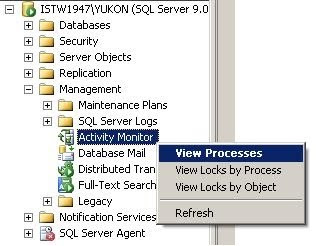
If you open the SQL Server Management Studio and connect to a SQL Server instance you will see the Activity Monitor object in the Object Explorer screen of the related database instance. You can double click the Activity Monitor object or right click to view the context menu and then select a desired item to display the activities to be monitored on the Activity Monitor screen.
As seen on below you can monitor and view process id's and process details on the list of prcesses running on the database instance. If you want you can filter processes based on specific values like user, database or status.
Note that default view when displayed the screen is first opened is filtered only for non-system processes which means system processes which own the first 50 reserved processid's are not listed in the view by default. You can view system processes by removing the filter on "Show System Processes" criteria in the filter settings screen.
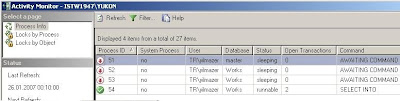
SQL Server 2005 SQL Server Management Studio Activity Monitor screen
You can kill a process by a right click on the process in the grid and selecting the Kill Process menu item. You will be asked for a confirmation to kill the related process and then will kill the open connection to the database over this process. This action is just like running to kill sql process t-sql command for a single process.
A second method which I do not recommend but can be used in some situations may be using the Detach Database screen to drop connections and detaching the database and then re-attaching the database.
By: http://www.kodyaz.com/
In such situations when you need to kill or close all the active or open connections to the SQL Server database, you may manage this task by using the Microsoft SQL Server Management Studio or by running t-sql commands or codes. Actually, this task can be thought as a batch task to kill sql process running on a SQL Server.
If you open the SQL Server Management Studio and connect to a SQL Server instance you will see the Activity Monitor object in the Object Explorer screen of the related database instance. You can double click the Activity Monitor object or right click to view the context menu and then select a desired item to display the activities to be monitored on the Activity Monitor screen.
As seen on below you can monitor and view process id's and process details on the list of prcesses running on the database instance. If you want you can filter processes based on specific values like user, database or status.
Note that default view when displayed the screen is first opened is filtered only for non-system processes which means system processes which own the first 50 reserved processid's are not listed in the view by default. You can view system processes by removing the filter on "Show System Processes" criteria in the filter settings screen.
SQL Server 2005 SQL Server Management Studio Activity Monitor screen
You can kill a process by a right click on the process in the grid and selecting the Kill Process menu item. You will be asked for a confirmation to kill the related process and then will kill the open connection to the database over this process. This action is just like running to kill sql process t-sql command for a single process.
A second method which I do not recommend but can be used in some situations may be using the Detach Database screen to drop connections and detaching the database and then re-attaching the database.
By: http://www.kodyaz.com/
Subscribe to:
Posts (Atom)