'
' by http://www.experts-exchange.com
'
Option Explicit
Declare Function SetWindowsHookEx Lib _
Declare Function CallNextHookEx Lib "user32" _
Declare Function UnhookWindowsHookEx Lib "user32" (ByVal hHook As Long) As Long
Declare Function GetActiveWindow Lib "user32" () As Long
Declare Function FindWindow Lib "user32" Alias "FindWindowA" _
Const HC_ACTION = 0
Type KBDLLHOOKSTRUCT
Enum AllowedValues
Function LowLevelKeyboardProc _
'\hook keyboard only if XL is the active window
End Function
Public Sub Unhook_KeyBoard()
If hhkLowLevelKybd <> 0 Then UnhookWindowsHookEx hhkLowLevelKybd
End Sub
Sub ValidateRange(r As Range, ByVal v As AllowedValues)
'\store these in global variables for they will be
End Sub
Sub test()
'\ignore any mishandling of the following
End Sub
"user32" Alias "SetWindowsHookExA" (ByVal idHook As Long, ByVal lpfn As Long, _
ByVal hmod As Long, ByVal dwThreadId As Long) As Long
(ByVal hHook As Long, ByVal nCode As Long, ByVal wParam As Long, lParam As Any) As Long
(ByVal lpClassName As String, ByVal lpWindowName As String) As Long
Const WM_KEYDOWN = &H100
Const WH_KEYBOARD_LL = 13
Dim hhkLowLevelKybd As Long
Dim blnHookEnabled As Boolean
Dim enumAllowedValues As AllowedValues
Dim objTargetRange As Range
Dim objValidationRange As Range
Dim vAns As Variant
vkCode As Long
scanCode As Long
flags As Long
time As Long
dwExtraInfo As Long
End Type
alpha
numeric
End Enum
(ByVal nCode As Long, ByVal wParam As Long, lParam As KBDLLHOOKSTRUCT) As Long
If GetActiveWindow = FindWindow("XLMAIN", Application.Caption) Then
If (nCode = HC_ACTION) Then
'\check if a key is pushed
If wParam = WM_KEYDOWN Then
'\if so, check if the active cell is within the target range
If Union(ActiveCell, objTargetRange).Address = objTargetRange.Address Then
'\if only numeric values should be allowed then
If enumAllowedValues = 1 Then
'\check if the pushed key is a numeric key or a navigation key
'\by checking the vkCode stored in the laparm parameter
If Chr(lParam.vkCode) Like "#" Or _
lParam.vkCode = 37 Or lParam.vkCode = 38 Or lParam.vkCode = 39 Or _
lParam.vkCode = 40 Or lParam.vkCode = 9 Or lParam.vkCode = 13 Then
'\if so allow the input
LowLevelKeyboardProc = 0
Else
'\else filter out this Key_Down message from message qeue
Beep
LowLevelKeyboardProc = -1
Exit Function
End If
'\if onle alpha values should be allowed then
ElseIf enumAllowedValues = 0 Then
'\check the laparam parameter
If Chr(lParam.vkCode) Like "#" Then
'\if numeric prevent the input
Beep
LowLevelKeyboardProc = -1
Exit Function
Else
'\otherwise allow the input
LowLevelKeyboardProc = 0
End If
End If
End If
End If
End If
End If
'\pass function to next hook if there is one
LowLevelKeyboardProc = CallNextHookEx(0, nCode, wParam, ByVal lParam)
blnHookEnabled = False
Cells.Clear
'\needed later in the filter function
enumAllowedValues = v
Set objTargetRange = r
'\don't hook the keyboard twice !!
If blnHookEnabled = False Then
hhkLowLevelKybd = SetWindowsHookEx _
(WH_KEYBOARD_LL, AddressOf LowLevelKeyboardProc, Application.Hinstance, 0)
blnHookEnabled = True
End If
'\input boxes by the user
On Error Resume Next
Cells.Clear
Set objValidationRange = Application.InputBox _
("Selet one or more Cells ", "Custom Data Validation...", Type:=8)
If objValidationRange Is Nothing Then GoTo errHdlr
objValidationRange.Interior.Color = vbGreen
vAns = InputBox("To allow only alpha values in the selected range enter 1 " _
& vbCrLf & vbCrLf & "To allow only numeric values in the selected range enter 2 ")
If vAns = 1 Then
ValidateRange objValidationRange, AllowedValues.alpha
ElseIf vAns = 2 Then
ValidateRange objValidationRange, AllowedValues.numeric
Else
GoTo errHdlr
End If
objValidationRange.Cells(1).Select
Set objValidationRange = Nothing
Exit Sub
errHdlr:
MsgBox "criteria error- Try again !", vbCritical
Unhook_KeyBoard
Showing posts with label VBA. Show all posts
Showing posts with label VBA. Show all posts


Cracking Password of VBA Project
You can try this direct VBA approach which doesn't require HEX editing. It will work for any files (*.xls, *.xlsm, *.xlam ...).
Tested and works on
Excel 2007
Excel 2010
Excel 2013 - 32 bit version.
Excel 2016 - 32 bit version.
Tested and works on
Excel 2007
Excel 2010
Excel 2013 - 32 bit version.
Excel 2016 - 32 bit version.
How it will work
I will try my best to explain how it works - please excuse my english.
- Excel will call a system function to create the password dialog box.
- If user enters the right password and click OK, this function returns 1. If user enters the wrong password or click Cancel, this function returns 0.
- After the dialog box is closed, Excel checks the returned value of the system function
- if this value is 1, Excel will "think" that the password is right, hence the locked VBA project will be opened.
- The code below swaps the memory of the original function used to display the password dialog with a user defined function that will always return 1 when being called.
using the code
- Open the file(s) that contain your locked VBA Projects
- Create a new xlsm file and store this code in Module1
'---------------------------------------------
Option Explicit
Private Const PAGE_EXECUTE_READWRITE = &H40
Private Declare Sub MoveMemory Lib "kernel32" Alias "RtlMoveMemory" _
(Destination As Long, Source As Long, ByVal Length As Long)
Private Declare Function VirtualProtect Lib "kernel32" (lpAddress As Long, _
ByVal dwSize As Long, ByVal flNewProtect As Long, lpflOldProtect As Long) As Long
Private Declare Function GetModuleHandleA Lib "kernel32" (ByVal lpModuleName As String) As Long
Private Declare Function GetProcAddress Lib "kernel32" (ByVal hModule As Long, _
ByVal lpProcName As String) As Long
Private Declare Function DialogBoxParam Lib "user32" Alias "DialogBoxParamA" (ByVal hInstance As Long, _
ByVal pTemplateName As Long, ByVal hWndParent As Long, _
ByVal lpDialogFunc As Long, ByVal dwInitParam As Long) As Integer
Dim HookBytes(0 To 5) As Byte
Dim OriginBytes(0 To 5) As Byte
Dim pFunc As Long
Dim Flag As Boolean
Private Function GetPtr(ByVal Value As Long) As Long
GetPtr = Value
End Function
Public Sub RecoverBytes()
If Flag Then MoveMemory ByVal pFunc, ByVal VarPtr(OriginBytes(0)), 6
End Sub
Public Function Hook() As Boolean
Dim TmpBytes(0 To 5) As Byte
Dim p As Long
Dim OriginProtect As Long
Hook = False
pFunc = GetProcAddress(GetModuleHandleA("user32.dll"), "DialogBoxParamA")
If VirtualProtect(ByVal pFunc, 6, PAGE_EXECUTE_READWRITE, OriginProtect) <> 0 Then
MoveMemory ByVal VarPtr(TmpBytes(0)), ByVal pFunc, 6
If TmpBytes(0) <> &H68 Then
MoveMemory ByVal VarPtr(OriginBytes(0)), ByVal pFunc, 6
p = GetPtr(AddressOf MyDialogBoxParam)
HookBytes(0) = &H68
MoveMemory ByVal VarPtr(HookBytes(1)), ByVal VarPtr(p), 4
HookBytes(5) = &HC3
MoveMemory ByVal pFunc, ByVal VarPtr(HookBytes(0)), 6
Flag = True
Hook = True
End If
End If
End Function
Private Function MyDialogBoxParam(ByVal hInstance As Long, _
ByVal pTemplateName As Long, ByVal hWndParent As Long, _
ByVal lpDialogFunc As Long, ByVal dwInitParam As Long) As Integer
If pTemplateName = 4070 Then
MyDialogBoxParam = 1
Else
RecoverBytes
MyDialogBoxParam = DialogBoxParam(hInstance, pTemplateName, _
hWndParent, lpDialogFunc, dwInitParam)
Hook
End If
End Function
'---------------------------------------------
3. Paste this code in Module2 and run it
'---------------------------------------------
Sub unprotected()
If Hook Then
MsgBox "VBA Project is unprotected!", vbInformation, "*****"
End If
End Sub
'---------------------------------------------
4. Come back to your VBA Projects and enjoy
by Siwtom (nick name), a Vietnamese developer
VBA Script for connecting to Microsoft Dynamics GP Database
The following VBA script example can be used for the Description_AfterGotFocus event in the Microsoft Dynamics GP Account Maintenance window. This script will connect to the Microsoft Dynamics GP sample TWO database and log on as system administrator with a password. After the connection is made, the script creates a recordset of the data that is stored in the GL00105 account index master table. The script will then return the account index value to the User-Defined1 field in the Account Maintenance window. The script returns this value when you enter a new account or use the Account Lookup button.
To use the example script, follow these steps:
Private Sub Description_AfterGotFocus()
Dim objRec
Dim objConn
Dim cmdString
Set objRec = CreateObject("ADODB.Recordset")
Set objConn = CreateObject("ADODB.Connection")
objConn.ConnectionString = "Provider=MSDASQL;DSN=GreatPlains;Initial Catalog=TWO;User Id=sa;Password=password"
objConn.Open
cmdString = "Select ACTINDX from GL00105 where (ACTNUMST='" + Account + "')"
Set objRec = objConn.Execute(cmdString)
If objRec.EOF = True Then
AccountMaintenance.UserDefined1 = ""
Else
AccountMaintenance.UserDefined1 = objRec!ACTINDX
End If
objConn.Close
End Sub
'-------------------------------------------------------------------------------------------------
You can also use the RetrieveGlobalsX.dll file as per for Microsoft Dynamics GP versions like 9 for 9.0, 8 for 8.0, to retrieve the same information that this script example retrieves.
To use the example script, follow these steps:
- Open the Account Maintenance window in Microsoft Dynamics GP.
- On the Tools menu, click Customize, and then click Add Current Window to Visual Basic.
- On the Tools menu, click Customize, click Add Fields to Visual Basic, and then click the Account Number field, the Description field, and the User-Defined 1 field.
- On the Tools menu, click Customize, and then click Visual Basic Editor.
- In Visual Basic Editor, expand Great Plains Objects, and then double-click AccountMaintenance to open an Account Maintenance code window.
- Copy the following code, and then paste it into the Account Maintenance code window.
Private Sub Description_AfterGotFocus()
Dim objRec
Dim objConn
Dim cmdString
Set objRec = CreateObject("ADODB.Recordset")
Set objConn = CreateObject("ADODB.Connection")
objConn.ConnectionString = "Provider=MSDASQL;DSN=GreatPlains;Initial Catalog=TWO;User Id=sa;Password=password"
objConn.Open
cmdString = "Select ACTINDX from GL00105 where (ACTNUMST='" + Account + "')"
Set objRec = objConn.Execute(cmdString)
If objRec.EOF = True Then
AccountMaintenance.UserDefined1 = ""
Else
AccountMaintenance.UserDefined1 = objRec!ACTINDX
End If
objConn.Close
End Sub
'-------------------------------------------------------------------------------------------------
You can also use the RetrieveGlobalsX.dll file as per for Microsoft Dynamics GP versions like 9 for 9.0, 8 for 8.0, to retrieve the same information that this script example retrieves.
VBA6 for Windows 7
Copy following text and save as "VBA6_4_Win7.REG" file and import in Windows 7 registry.
Windows Registry Editor Version 5.00
[HKEY_CLASSES_ROOT\TypeLib\{000204EF-0000-0000-C000-000000000046}\6.0\9\win32]
@="C:\\Program Files\\Common Files\\microsoft shared\\VBA\\VBA6\\VBE6.dll"
RetrieveGlobals9.dll in Microsoft Dynamics GP
Microsoft has published a dll called RETRIEVEGLOBALS.DLL that can be used to access user data from inside of Dynamics GP.
Database Connections for Modifier with VBA or Integration Manager in Microsoft Dynamics GP
The RetrieveGlobals9.dll is an ActiveX dll that will return the current User ID, the current company logged in to, the current SQL data source as well as the current user date in Microsoft Dynamics GP. The RetrieveGlobals9.dll will also return an ADO connection object that will allow you to connect to Microsoft Dynamics GP Data. The RetrieveGlobals9.dll will work only with version 9.0 Microsoft Dynamics GP and will only work if one session of Microsoft Dynamics GP is running and logged into. The RetrieveGlobals9.dll is only for use in Modifier with VBA or Integration Manager that also require Microsoft Dynamics GP to be open and running.
Installation Instructions
Copy the RetrieveGlobals9.dll to a folder on your machine.
Register the RetrieveGlobals9.dll using regsvr32.exe. Go to Start-Run and enter the path to the regsvr32.exe, followed by the path and name of the DLL. For example:
C:\WINDOWS\system32\regsvr32.exe “c:\GP 90\RetrieveGlobals9.dll
Note: If the DLL registers successfully, you should get a message box indicating so.
Write your application code to call the RetrieveGlobals9.dll
Using the RetrieveGlobals9.dll
The retrieveuserinfo class of RetrieveGlobals9 contains the following properties and functions:
intercompany_id
The intercompany_id method retrieves the Company ID that is currently logged into Microsoft Dynamics GP. This will match with the database name in MSSQL.
Example: “TWO”.
Syntax: intercompany_id () as String
retrieve_user
The retrieve_user method retrieves the User ID that is currently logged into Microsoft Dynamics GP.
Syntax: retrieve_user() as String
sql_datasourcename
The sql_datasourcename method retrieves the current SQL Datasource name that is being utilized by Microsoft Dynamics GP.
Syntax: sql_datasourcename () as String
user_date
The user_date method retrieves the User Date from the Toolbar in Microsoft Dynamics GP.
Syntax: user_date () as Date
status
The status property indicates whether or not a valid connection object can be obtained from the connection property.
Syntax: status As Long
The status property could contain the possible values:
Value Description
0 A Microsoft Dynamics session is not open
1 A connection can be created
2 A connection could not be created
3 The current Microsoft Dynamics session is not Version 9
131072 (&H20000) A COM exception occurred during the connection attempt
262144 (&H40000) The account is locked
65536 (&H10000) The user’s password has expired
connection
The connection property contains an ADODB.Connection to the Microsoft Dynamics GP SQL Server. This connection uses the SQL Datasource, User ID and Password credentials of the user currently logged into Microsoft Dynamics GP. This connection does not have a default database specified.
Syntax: connection As Object
* The connection property will only contain a valid connection object if a Microsoft Dynamics GP 9.0 session is open and running. It should be verified that the status property has a value of 1 prior to attempting to use the connection property.
Example
Dim cn
Dim cmd As ADODB.Command
Dim rst As adodb.Recordset
dim prm as adodb.parameter
Set userinfo = CreateObject("RetrieveGlobals9.retrieveuserinfo")
If userinfo.Status = 1 Then
Set cn = userinfo.connection
luserid = userinfo.retrieve_user()
lintercompanyid = userinfo.intercompany_id()
lsqldatasourcename = userinfo.sql_datasourcename()
ldate = userinfo.user_date()
'Use the connection property to get a connection object.
Set cn = userinfo.connection
'set the database to the currently logged in db.
cn.DefaultDatabase = lintercompanyid
cmd.CommandType = 4 'stored proc
cmd.ActiveConnection = cn
cmd.commantText = "myStoredProc"
'add params
cmd.parameters.add cmd.CreateParameter("@paramname",adVarchar,adInput,21,"steve")
Set rst = cmd.Execute
while not rst.eof
'do something
rst.movenext
wend
end if
cn.close
set cn = nothing
"ActiveX component can't create object" Runtime Error in Visual Basic Application
This behavior can occur if any of the following conditions are true:
- Data Access Objects (DAO) is not properly registered.
- One or more references are missing.
- There is a utility database reference that is not valid.
- You do not have the required permissions for required libraries.
- There is a damaged wizard file.
Cause 1: DAO is not properly registered
1. On the computer that hosts Microsoft Windows Terminal Server or the computer on which Microsoft Access is installed, click Start, and then click Run.
2. Type regsvr32 followed by the path to your DAO file. Enclose this path in quotation marks. For example, to register the DAO 3.6 library, use the following command regsvr32 "C:\Program Files\Common Files\Microsoft Shared\DAO\DAO360.DLL"
Cause 2: One or more references are missing
1. Open the database for which you receive the error message.
2. Press ALT+F11 to open the Microsoft Visual Basic Editor.
3. In the Visual Basic Editor, click References on the Tools menu.
4. Examine the list of libraries. If any items are marked as "missing," locate the library file and re-associate the reference. Or, click to clear the check box next to the library name.
Cause 3: There is a utility database reference that is not valid
1. Open the database for which you receive the error message.2. Press ALT+F11 to open the Visual Basic Editor.
3. In the Visual Basic Editor, click References on the Tools menu.
4. Click to clear the check box next to any reference to Utility Database or Utility.
Cause 4: You do not have the required permissions for required libraries
Make sure that users have "read" permissions for all files in the following folders as per Operating System Location:
- Windows XP \Windows\System32
- Windows NT and Windows 2000 \Winnt\System32
- Windows 95, Windows 98, and Windows Millennium Edition \Windows\System
If you cannot grant read permissions, you can use a utility such as FileMon to determine which file or files the users do not have the required permissions to use. To obtain FileMon, visit the following Sysinternals Web site: Sysinternals
Cause 5: There is a damaged wizard file
1. Use Windows Explorer to locate the following wizard files: Acwzmain.mde, Acwztool.mde and Acwzlib.mde.
2. Change the file name extension of each file to "old." For example, change Acwzmain.mde to Acwzmain.old.
3. Reinstall Access to restore the files.
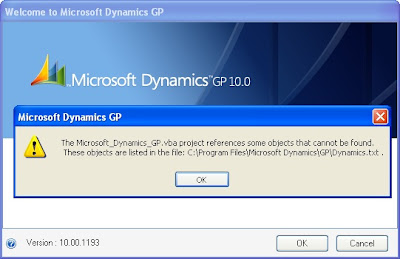
How To Remove/Avoid "Microsoft_Dynamics_GP.vba project reference" Message Box in Microsoft Dynamics GP
If you are getting "Microsoft_Dynamics_GP.vba project reference" Message Box at start-up then do the followings to ignore this.
Create DEXVBA.ini file, this file is not created by default. You will need to open Notepad (or similar text editor) and create it. The file should be created in the root Windows folder, not in the GP folder.
Step 1. Create a file named DEXVBA.ini in the root Windows folder.
Step 2. Add the following line to the top of the file: [General]
Step 3. Add the selected .ini setting beneath [General].
LogObjects=TRUE
This will create a text file that will include all of the objects in a VBA project. The text file will be the same name as the product dictionary with a ‘.txt’ extension.
NoUnresolvedDialog=TRUE
This will suppress the following error message when you launch Dynamics GP.
“The product_name.vba project references some objects that cannot be found.
These objects are listed in the file: C:\Program Files\Microsoft Business Solutions\GP\ product_name.txt”
The warning will be suppressed for all VBA projects loaded. It doesn’t solve the problem regarding missing objects, but it suppresses the message.
Contents of DEXVBA.ini
[General]
LogObjects=TRUE
NoUnresolvedDialog=TRUE
Create DEXVBA.ini file, this file is not created by default. You will need to open Notepad (or similar text editor) and create it. The file should be created in the root Windows folder, not in the GP folder.
Step 1. Create a file named DEXVBA.ini in the root Windows folder.
Step 2. Add the following line to the top of the file: [General]
Step 3. Add the selected .ini setting beneath [General].
LogObjects=TRUE
This will create a text file that will include all of the objects in a VBA project. The text file will be the same name as the product dictionary with a ‘.txt’ extension.
NoUnresolvedDialog=TRUE
This will suppress the following error message when you launch Dynamics GP.
“The product_name.vba project references some objects that cannot be found.
These objects are listed in the file: C:\Program Files\Microsoft Business Solutions\GP\ product_name.txt”
The warning will be suppressed for all VBA projects loaded. It doesn’t solve the problem regarding missing objects, but it suppresses the message.
Contents of DEXVBA.ini
[General]
LogObjects=TRUE
NoUnresolvedDialog=TRUE
Subscribe to:
Posts (Atom)