Gross Profit for the Past 12 Months, Calculation in Microsoft Dynamics GP

Since Microsoft Dynamics GP Release 9.0 and the introduction of the home page, one of the metrics available to users is “Gross Profit for the Past 12 Months.” Have you ever wondered how that is calculated?


It’s really quite simple. To be included in the gross profit calculation, an account must be assigned to one of 3 categories:

• Sales
• Sales Returns & Discounts
• Cost of Goods Sold

These are 3 of the 48 default “out of the box” categories created in a Microsoft Dynamics GP installation. A category selection is required on the account maintenance window.

What if you don’t use the default categories or change the names of the categories?
Actually, the graph isn’t tied to the category names; it’s tied to category numbers 31, 32 and 33. So, it does not matter if you change the names of the default categories. The graph will be based on category numbers 31, 32 and 33. It’s important to keep that in mind if you’re not using the default categories (if you create your own set) make sure the accounts you want included in the calculation of gross profit are assigned to categories with the numbers 31, 32 or 33.

Also, keep in mind that categories are listed in numerical order during lookups, so if you create your own list of categories and properly assign the categories you want included in the gross profit calculation to numbers 31‐33, they may not appear in a logical sequence in the lookup.  By the way, you access the category setup window via Tools>Setup>Financial>Category.

Altering the Cost Basis of an Asset after it is Entered in Microsoft Dynamics GP

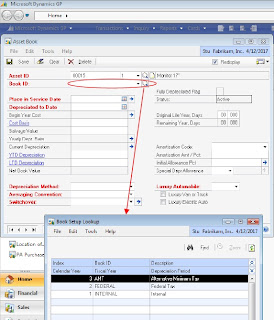
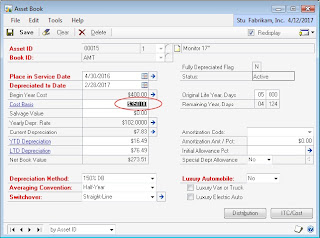
By design, invoices are the only document types that integrate from Payables Management to Fixed Asset Management. You cannot apply credit memos from Payables Management to an asset that has already been entered into the system. If you must alter the cost basis of an asset after it is entered into the system, change the value in the Cost Basis field in the Asset Book window. To do this, follow these steps:

1. On the Cards menu, point to Fixed Assets, and then click Book.
2. In the Asset ID field, enter the appropriate asset ID.
3. In the Book ID list, click the appropriate book ID.


4. Reduce the value in the Cost Basis field by the credit memo.


5. Click Save.
6. Click Yes when you are prompted to continue.
7. Because the Cost Basis field is a depreciation‐sensitive field, click one of the following Reset options when you are prompted:
  • Life: Calculates depreciation from the date it was put in service through the date that the asset was already depreciated. Adjustments to the depreciation for any period are saved and displayed in the Asset Book window.
  • Year: Calculates a new yearly depreciation rate and uses the new rate to recalculate depreciation from the beginning of the current fiscal year as defined in the Book Setup window through the date that the asset was already depreciated.  Adjustments to the depreciation for any period are saved and displayed in the Asset Book window.
  • Recalculate: Calculates a new yearly depreciation rate as of the beginning of the current fiscal year as defined in the Book Setup window. However, calculations are not based on the new rate until the next time depreciation is taken on the asset. The current year‐to‐date depreciation amount is not affected.

Copying Security Roles from a Test Environment to Production Environent in Microsoft Dynamics GP

Prior to Microsoft Dynamics GP v. 10.0, as new features were added to the software new users were automatically given rights – even though they shouldn’t have. With Microsoft Dynamics GP v. 10.0 you need to grant rights using the pessimistic model.

With the change from the optimistic user and class based security model in Microsoft Dynamics GP v. 9.0 (and v. 8.0) to the pessimistic role and task base security model in Microsoft Dynamics GP v. 10.0, a question that is often asked is, how can security settings be transferred between a test and live system? With Microsoft Dynamics GP v. 8.0 and v. 9.0, you could use the Export and Import facility built into Advanced Security to transfer the settings for a user/company or class as an XML file. As Advanced Security is no longer relevant with the role and task based model, that option is not available for Microsoft Dynamics GP v. 10.0.

The alternative for Microsoft Dynamics GP v. 10.0 is to copy the data from the appropriate tables from the source system to the target system. You can copy the data using a variety of methods, but the simplest way would be to use the XML Table Export and XML Table Import features of the Support Debugging Tool for Microsoft Dynamics GP.*

When Importing or Exporting it can save time, money, and frustration. Take a look at the print screens below to see how it can be easy and quick for CriticalEdge Group to get your data from your test environment into your production environment, and visa versa.


SQL Reporting Services (SRS) for Microsoft Dynamics GP

Is your boss, who may not be a Microsoft Dynamics GP user, continually asking you for GP reports such as AR or AP agings? Take yourself out of that loop and empower your boss at the same time by implementing SQL Reporting Services – you already own it!

SQL Reporting Services (SRS) is a component of SQL that can be installed in a few minutes. With GP version 10.0, you also get a library of reports out of the box that can be deployed, in a secure fashion, very easily. These reports should look familiar to existing GP users.  Below is an out of the box AR aging report available in SRS. The report can be printed or exported to a number of formats, including Excel and PDF. It can be generated from a secure website inside your firewall or it can be delivered via e‐mail on a schedule you define to the recipients who need the report. 

Users can get an e‐mail with a link to the report and/or a file in a specified format, such as PDF.  In addition to the out of the box reports provided with version 10, users can design custom reports.  These reports can include not only data from GP tables but data from third party products, custom  tables, and different databases. In order to write reports, some knowledge of SQL is required. The  report writing tool itself should not be hard to learn for anyone who has any report writing  experience in another report writing tool such as Crystal Reports.  SRS has something for everyone in your organization who needs access to GP and other SQL data.  Each series has its own folder on the website.  Each folder contains a broad selection of reports.

You can designate who can see each individual report using network security. Consumers of reports need not be GP users. In fact, if you have employees who use GP simply for reports or inquiries it may be possible to entirely eliminate their need to use GP. So you can use this free software, SRS, to keep down your GP licensing costs.

The Letter Writing Assistant in Microsoft Dynamics GP

Did you know that Dynamics GP comes with a tool for writing form letters, along with a collection of Word-based templates? The Letter Writing Assistant (LWA) can help you write letters to your vendors, customers or employees.

There are numerous ways to access the LWA, but we will try one of the simplest ways. Let’s say you want to send out requests for W-9s to a subset of your vendors. 

  • Go to the vendor card. Under ‘Write Letters’, there are 2 choices – you can maintain a letter, i.e. edit a template, or prepare letters. Let’s prepare a letter.
  • As you will find, there are a number of options for selecting recipients of the letter. The most useful is generally the SmartList Selection.
  • You can select from any saved SmartList view in your vendor folder, such as one you might have created to identify vendors with a missing tax ID.
  • You can select from a set of vendor related Dynamics GP supplied templates, or by selecting ‘Letter Maintenance’ from the vendor card window to create your own.
  • You can then edit (at least remove from) the list of vendors returned by your selection criteria.
  • You can supply credentials that will be remembered on your computer.
The result is a Word document mail merge with a letter to each of your selected vendors!

Midnight Date Change Message in Microsoft Dynamics GP

If a copy of Dynamics GP is left running, at midnight a pop-up box is displayed asking the user if they want to change the date. Everything else stops. If you are running some kind of automated or timed process that needs GP open, you do not want this message box to appear.  To stop this action, add the following line to the DEX.INI file on the workstation:

SuppressChangeDateDialog = TRUE

Print Different Sales Docs to Different Printers in Microsoft Dynamics GP

By default, all sales documents print to the same printer. Using Named Printers, it’s easy to print the Invoice document to one printer and the Picking Ticket to another. However, you can also use Named Printers to print the Long Form Picking Ticket to one printer and the Blank Form Picking ticket to a second printer.

A little known fact regarding the different document formats is that they do NOT need to be different. The Long, Short, Blank, and Other form can all be the same, including the same size! Users can actually create a form, export it, open the form in a text editor (like Notepad) and change the references from Long Form (for example) to Short Form and import the form back in as a different form type. This makes it easier to create the other form.

Note: The form type is listed 3-4 times in the document. Make sure you change all of them.

Now, with 4 different defined forms the way you want them, Named Printers can easily be used to direct one form layout to one printer and a different form layout to a different printer.

Pop-Ups on SOP Transaction Entry in Microsoft Dynamics GP

If you’re like me and you’ve come to rely on Outlook pop-up reminders, you’ll appreciate the value of this tip.
Microsoft Dynamics GP users have long been asking for a way to have a message pop up during Sales Order Entry when there is a problem or special requirements associated with a customer. While GP out of the box does not support this, where there’s a will there’s a way and it can be done.  Using the full version of Extender, a window can be crafted that shows messages to users. This window can be triggered to open when the user tabs out of the customer number field only upon special conditions.

Phantom vs. Regular Bill of Materials (BOMs) in Microsoft Dynamics GP

The use of a Phantom vs. a Regular BOM for a sub-assembly defines the manufacturing process. Let’s say you have part A made out of B, C, and D.  Part D is a sub-assembly made out of E, F, and G.  If part D is defined as a Regular BOM, then when a Manufacturing Order (MO) is issued to make A, it calls for parts B, C, and D, assuming that D will be pulled from stock. D would still have to be made using an MO calling for parts E, F, and G.

If part D is defined as a Phantom BOM, then when the MO is issued to make A, the MO calls for parts B, C, E, F, and G. The MO "blows through" part D and calls out its components.  If part D is defined as a Phantom BOM, it is possible to manufacture part D to sell, for example, as replacement parts. The MO for part A will always blow through the phantom BOMs.

Missing Lines When Matching Invoices to Receipts? in Microsoft Dynamics GP

Partial receipts against POs are a normal part of business and vendors will send invoices to match the items already delivered. If this process is miss-managed, it can become difficult to match invoices to receipts.  One purchasing manager very carefully edited his open POs after partial receipts were recorded. He did not want the POs to show items on order that were already delivered. When the accounting department went to match the invoices to the receipts, some lines could not be found!  Dynamics GP carefully manages received quantities against existing PO documents. It is NOT necessary to edit the PO once some lines have been received. Deleting lines already received will so confuse the system that invoices cannot be matched. This can result in amounts being left in Receiving Accruals and double posting of expenses.  Generally speaking, if a line has been properly received on a PO, the system will mark the lines received and they will not show on any expected receiving report.

Distributions Do Not Match in Microsoft Dynamics GP

Ever get the error “The distributions do not match” when saving an SOP Invoice or return document?  Typically this happens when someone edits the amounts. The Distribution Codes in the distribution window refer to specific values (such as the total receivables, or the total sales amount, or tax amount) and MUST match the
appropriate total on the invoice. For example, if the Sales code is edited, additional sales codes and GL distributions can be added to the list but the total of the distributions for all of the Sales codes must match the total sales on the invoice.

To fix it, open the distributions and click the Defaults button. This will set the distributions correctly (assuming all the account numbers are filled in). If necessary the user can edit distributions one at a time and save them until the error occurs again in order to identify the specific source of the error message.

Security Access to Custom SmartList Objects in Microsoft Dynamics GP

To access the SmartList in GP 10, follow these steps:

1. Login as SA
2. Go to Dynamics | Tools | Setup | System | Security Roles
3. Select the role that you have created
4. Scroll down to Admin_System_SL05 and double click
5. Product = SmartList
6. Type = SmartList Object
7. Series = Smartlist Object
8. Select your custom SmartList from the series
9. Click save

Opening Record Notes with a Keystroke in Microsoft Dynamics GP

We’ve heard that some Dynamics GP users bemoan the loss of a convenient keyboard function. Apparently, in older versions of GP, users could open record notes with a keystroke. Now, apparently, you need to take your hands off the keyboard and grab the mouse. Much less convenient.

Try this...

  • Alt/F8 to start recording a macro while the desired window is open (suppose Sales Transaction Entry window).
  • Name the macro.
  • Next, use the mouse to open the appropriate Record Notes window.  Once the Record Notes window is open, click on Alt/F8 again to stop the macro.
  • Next, in the Navigation Pane, add a Macro Shortcut. Point to the macro just recorded and assign a Keyboard Shortcut key to the shortcut.

That's it! Now as you type along, just hit the keyboard shortcut associated with the macro and POOF! The Record Notes window opens without using the mouse. Keep in mind, this macro ONLY works for the one window that was opened when it was recorded. If shortcuts are needed for other windows, they need to be recorded individually and assigned to different keystrokes.  And yes, other windows and functions can be opened with keystrokes by using macros.

Importing Reports in Microsoft Dynamics GP

When a reports dictionary is on the server and shared, it is almost impossible to import a report written on another system. By the book, you have to get all of the users to log out of Dynamics GP and then import your report. In a busy system or large install, this is frequently impossible.

Here is a work around:
  • Copy the Reports.Dic to your local drive.
  • Make a copy of the Dynamics.set file.
  • Call this copy DynamicsLocal.set.
  • Modify the local set file to look at the local reports dictionary.
  • Now, log into Dynamics GP using the DynamicsLocal.set and import your report into the local Reports.dic.
  • Then log out of GP and back in with your network SET file.
    Go into Report Writer.
  • You will find an import option that will let you import single reports from another reports dictionary.
  • Browse to the local Reports.dic that now contains the imported report and copy just that report to the network dictionary.
This can be done without turning all of the users out of the system.

Deleting Parts, Customers, or Vendors? Microsoft Dynamics GP

Unless you take care to purge all of the sales and purchasing history for inventory items, customers, and vendors, reusing an ID will cause the new item, customer, or vendor to pick up the history of the original item.  Imagine a new customer's surprise when your AR clerk calls them and discusses all of their old bad credit history!

Be safe. Always use new IDs for new customers, new vendors, and new inventory items!

Cannot Reconcile Inventory While Posting in Microsoft Dynamics GP

On occasion, when reconciling inventory tables, an error message is displayed suggesting someone is posting when you know for a fact that everyone is out of the application. Here are a couple of things you can do to clear up this situation.  First, examine the Batch Recovery and make sure that there are no stuck batches.  If stuck batches are found, clean them up and complete the posting of those batches. Re-try the reconcile.  If you still get the error message, perform the following:

1. Get everyone out of GP
2. Run these commands in Query Analyzer against the Dynamics Database
    Delete Activity
    Delete SY00800
    Delete SY00801
3. Run the following commands against the TEMPDB database
    Delete DEX_LOCK
    Delete DEX_SESSION
4. Have one user log back in and try the reconcile process

Audit Your Security Settings in Microsoft Dynamics GP

When systems are first installed, security is established with the assistance of a qualified VAR or consultant. As years go by, security is established by copying one user's rights to another. Frequently this works. However, in
some cases, the rights are not conveyed exactly as they should be.  Check, for example, the rights of users to access options under the File menu. This includes maintenance functions such as Check Links, Backup, Restore, and Clear Data (yes, it could delete all of your records!). Other not quite so dangerous functions might be exposed to users by accident as well.  Taking some time to walk through the current security settings and verifying that the right team members can get ONLY to the tasks they require could save countless hours restoring lost data, even if it is only accidental.

Support Strange Terms in Receivables in Microsoft Dynamics GP

Ever had a sales manager return from a trade show and tell you that everyone he saw can place an order for the next two months and have a due date of say 04/31/2009? And since the orders can be placed any time over
the next 2 months, creating a new terms code of Net 97 just won't work.  Create a special terms code, call it Net Jim (or whoever made this absurd deal). In the terms code, set the due days to 90 days, just to put in a
number. Periodically, use the SmartList to pull up invoices with terms of Net Jim (or whatever you used). Then simply edit the receivable and set the due date to the special date. The aging will work correctly, cash flow reports will work from the adjusted due date, and you can talk to the sales manager later about offering special deals!

Devaluing Inventory in Microsoft Dynamics GP

People often ask how to devalue inventory. They purchase an item at one price, hold it in inventory only to find the item is no longer worth the original price paid. They then ask about devaluing the inventory.  The use of the word Value in Valuation Method on the Inventory Card is actually a misnomer. It should say Costing Method. The "value" tracked by GP is the cost to acquire the item and not the item's current value. The user may have paid $10.00 each of an item that is now only worth $2.00 but the firm paid $10.00 and the $10.00 is being held in the inventory asset account.  If an adjustment is needed for financial statements, create an inventory asset contra account and post the adjustment to that account, showing the total of the inventory asset account and the contra account on the financial. This will allow the "write-off” to be taken immediately. Now, as the items are
actually sold, use the markdown to sell them at a lower price and post the markdown to the contra asset account, wiping out the adjustment

Tracking Numbers on Sales Orders in Microsoft Dynamics GP

Shipping carriers like UPS and others provide shipment tracking numbers. These numbers should be entered in the Tracking Numbers field of the User Defined Fields. From the Sales Transaction Entry window, click the User Defined button and record the tracking numbers. If the Custom Link for the tracking number is properly set up, clicking on a tracking number will call up the carrier’s Internet page and track the shipment, providing valuable information for your customer service team.